

Save changes
Changes on a branch save automatically to Mintlify and Git. You don’t need to click Publish to commit them. Each save updates the branch’s draft pull request and preview deployment. Changes on your deployment branch also save in the editor, but don’t reach Git or your live site until you click Publish, unless you enable main branch autocommits. Automatic saving includes:- Content edits in pages
- New or deleted pages
- Navigation structure changes
- Media uploads
- Configuration updates
Work on a branch
Use a branch when you want to review changes before they reach your live site. Each branch you create in the editor is backed by a draft pull request.- Click the branch name in the editor toolbar.
- Click Create new branch.
- If you have pending changes, choose whether to bring them to the new branch or leave them on the current branch.
- Enter a name and click Create branch.
The branch selector shows your deployment branch and branches that have pull requests. Git branches without pull requests don’t appear in the visual editor.
Your live site updates after Mintlify builds and deploys your changes. This typically takes 30 seconds to a few minutes. Check the deployment status on your dashboard.
Switch branches
- Click the branch name in the toolbar.
- Search for or scroll to the branch you want.
- Click the branch to switch to it.
Preview your changes
Every time the editor saves changes to a branch, Mintlify updates its preview deployment, a temporary URL where your changes render exactly as they look when published.Access and share a preview
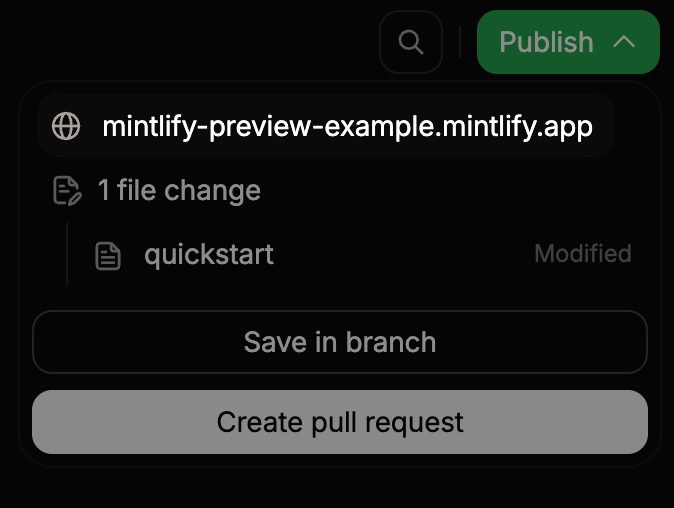
- Click Publish in the editor toolbar.
-
In the publish menu, click the preview URL. The URL format is
organization-branch-name.mintlify.site.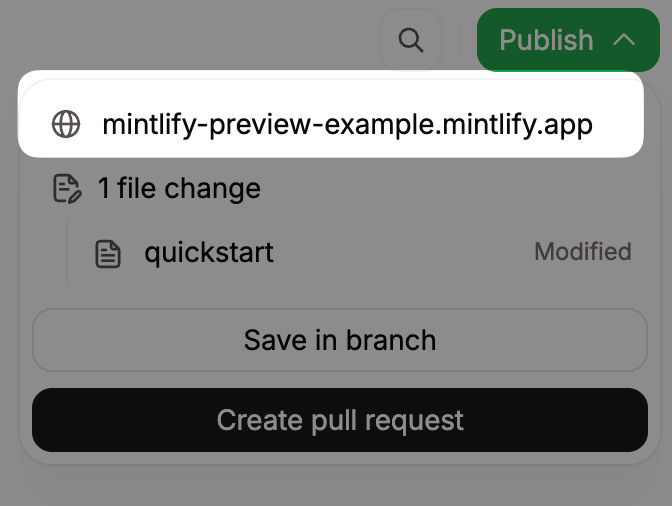
Restrict access to previews
Preview URLs are publicly accessible by default. To restrict access to members of your Mintlify organization, enable preview authentication in the Add-ons page of your dashboard.Share editor links
To invite a teammate to a specific page on a branch, copy the URL from your browser’s address bar and share it. Anyone with access to your Mintlify organization can open the link directly in their editor session. The URL format is:https://app.mintlify.com/acme/docs/editor/main/~/guides/quickstart.mdx
Review and merge pull requests
Every editor-created branch starts with a draft pull request. When you’re ready for feedback, mark the pull request ready for review. The publish menu shows a review panel with:- The pull request title, description, and whether it is a draft.
- The source and target branches.
- The number of changed files.
- The approval requirement on the deployment branch: Approval required, Code owner required, or no requirement.
- The current review status: Approved, Changes requested, or Awaiting review.
Approve pull requests from the editor
For GitHub repositories, reviewers can approve open pull requests in the editor. When a pull request is open, an Approve pull request button appears in the review panel if your account has permission to review it. Click Approve pull request when the changes are ready to merge. The review status updates to Approved and the Merge and publish action becomes available. If you use GitLab or Bitbucket, open the pull request in your Git provider to approve it.Review changes before merging
Click any changed file in the publish menu to open it in diff view and compare your branch against the published version. In visual mode you see a visual diff. In source mode you see a text diff. Files that can’t display a diff, such as images or deleted files, appear in the list but aren’t clickable. The file tree highlights changed pages so you can see at a glance which files an automation or teammate touched. Unlisted pages that appear in the branch diff are also openable from the publish menu, even though they don’t appear in your site navigation.Open an automation run in the editor
When an automation opens a pull request, you can jump straight from the run review UI or its Slack notification into the editor on the automation’s branch:- From the Automation Runs page in your dashboard, click Open in editor on a completed run.
- From a Slack notification, click the View changes link.
Pull request titles and descriptions
The editor creates a title and description when it opens the draft pull request. You can edit the pull request title from the branch menu or update both fields in your Git provider.Resolve conflicts
Conflicts occur when your branch and the deployment branch have incompatible changes to the same files. For example, when you and a teammate edited the same lines in a file or moved a file to different locations. The editor displays a warning when conflicts block publishing. Follow the prompts to choose which version of each conflicting section to keep.Collaborate in real time
When multiple people open the same page on the same branch, they edit together in real time. Each person’s cursor and edits are visible to everyone, with avatars shown in the toolbar.- Changes from all collaborators merge automatically. Two people editing the same section won’t create conflicts.
- Undo only affects your own edits.
- If you lose your connection, edits save locally and sync when you reconnect.